Agents Hub
The Agents Hub is the central place to manage and monitor all of your OrionIQ agents. From here you can view agent details, track invocation history, review results, and control agent activation.
To open the Agents Hub, navigate to OrionIQ > Agents Hub in the left navigation menu.
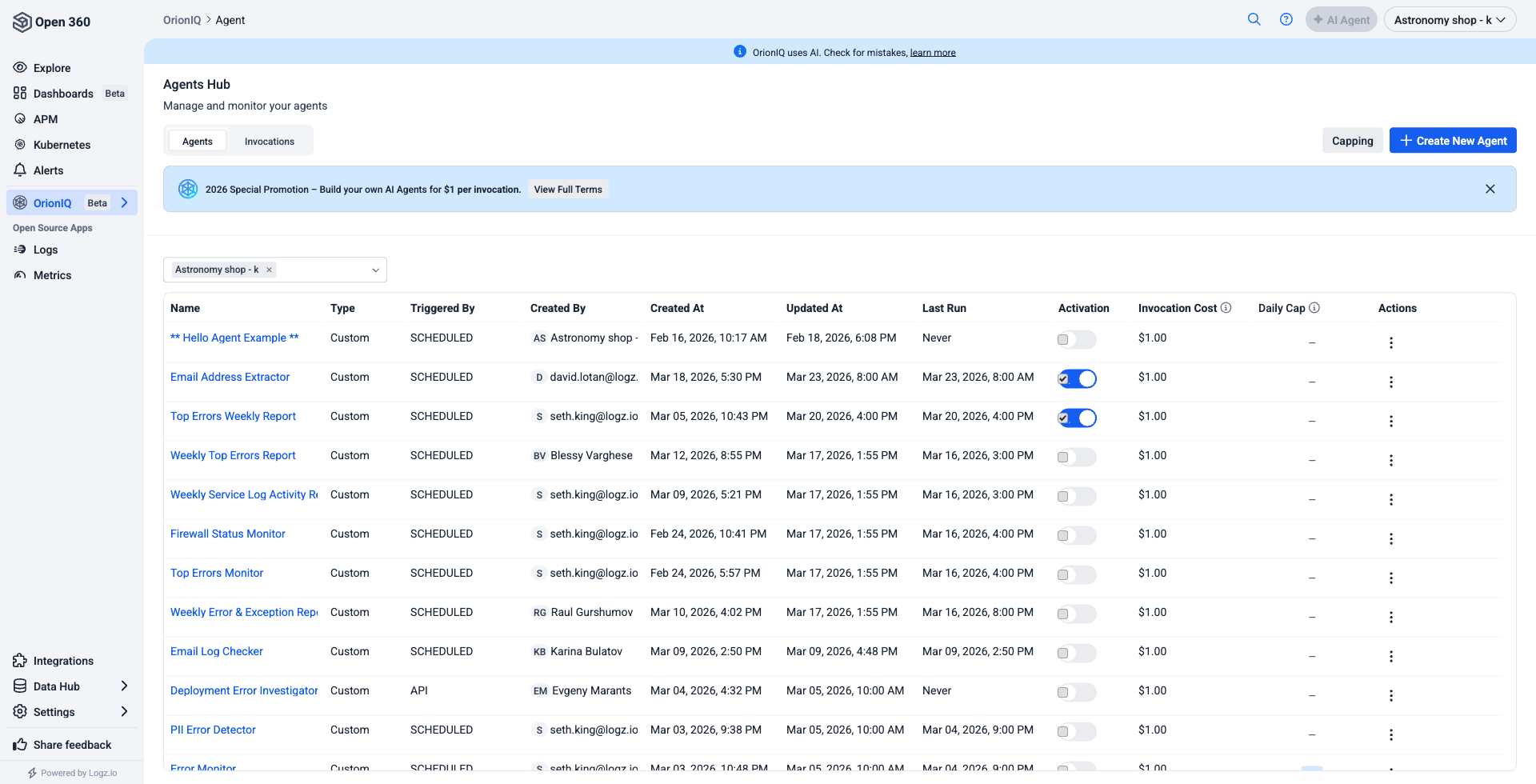
Agents tab
The Agents tab displays a list of all agents in your account. Each agent row includes the following information:
| Column | Description |
|---|---|
| Name | The agent name. Click to open the agent's details. |
| Type | The agent type (for example, Custom). |
| Triggered By | How the agent is triggered (Scheduled, API, Deployment, or Alert). |
| Created By | The user who created the agent. Agents provisioned by the platform, such as alert root cause analysis agents, are attributed to Logz.io. |
| Created At | The date and time the agent was created. |
| Updated At | The date and time the agent was last modified. A run on its own doesn't change this. |
| Updated By | The user who last modified the agent. Empty when no edit has been recorded. |
| Last Run | The date and time of the agent's most recent invocation. |
| Activation | Toggle to enable or disable the agent. |
| Invocation Cost | The cost charged when this agent is triggered. |
| Daily Cap | Per-agent daily invocation limit, configured in each agent's settings. |
| Actions | The agent's Triggers menu and its actions menu. |
To create a new agent directly from this page, click Build an Agent in the top right corner.
Triggers
Each row has a Triggers menu for running or wiring up the agent:
| Action | Description |
|---|---|
| Test Manually | Run the agent now with a context you supply, without waiting for its trigger. Use it to check an agent's instructions before relying on them. |
| Connect Alert | Wire the agent to a Logz.io alert, so a triggered alert invokes it. |
An action is unavailable when the agent's configuration doesn't allow it — for example, an agent that's disabled or capped. Hover the action to see why.
Row actions
The actions menu (⋯) holds the rest:
| Action | Description |
|---|---|
| Edit Agent / View Agent | Open the agent's configuration. Alert-managed and read-only agents open in view mode. |
| See Invocations | Jump to the Invocations tab, filtered to this agent. |
| API References | Show ready-to-copy requests for invoking this agent over the OrionIQ API. |
| Delete Agent | Remove the agent. |
Filter the list
Use the filters above the table to narrow the list:
| Filter | Description |
|---|---|
| Account | Show agents from specific accounts. |
| Agent Type | Show agents of a specific type. |
| Triggered By | Show agents using a specific trigger. |
| Agent Name | Show a specific agent. |
| Created By | Show agents created by a specific user, or by Logz.io. |
| Activation | Show only agents that are On or only those that are Off. |
The Invocations tab offers an Output filter instead of Activation, so you can narrow the run history to Success, Failed, or Running.
Capping
Admins can click the Capping button to manage AI spend and invocation limits across the account. These are the same limits as OrionIQ > Settings > Capping — see Capping.
Permissions
Users with the Read-only role have full read access to OrionIQ. They can:
- Browse agents, the Agents Hub, and invocation history.
- View the Usage & Performance Dashboard, connected Integrations, Memory, and the Marketplace — including agent templates they may want to request.
- Use OrionIQ chat.
They can't create, edit, activate, delete, or manually trigger agents, and they can't install a marketplace agent or connect an integration.
Invocations tab
The Invocations tab displays the run history for all agents. Each row represents a single invocation and includes the agent name, type, trigger method, who created it, the execution time, and the outcome.
An invocation ends in one of the following outcomes:
| Outcome | Description |
|---|---|
| Success | The run completed and produced a result. |
| Failed | The run ended in an error. |
| Running | The run is still in progress. |
| Stopped | You stopped the run before it finished. Any steps it completed are kept. |
| Incomplete | The run couldn't finish — it timed out, ran out of context, or hit an internal error. The reason is shown with the output. |
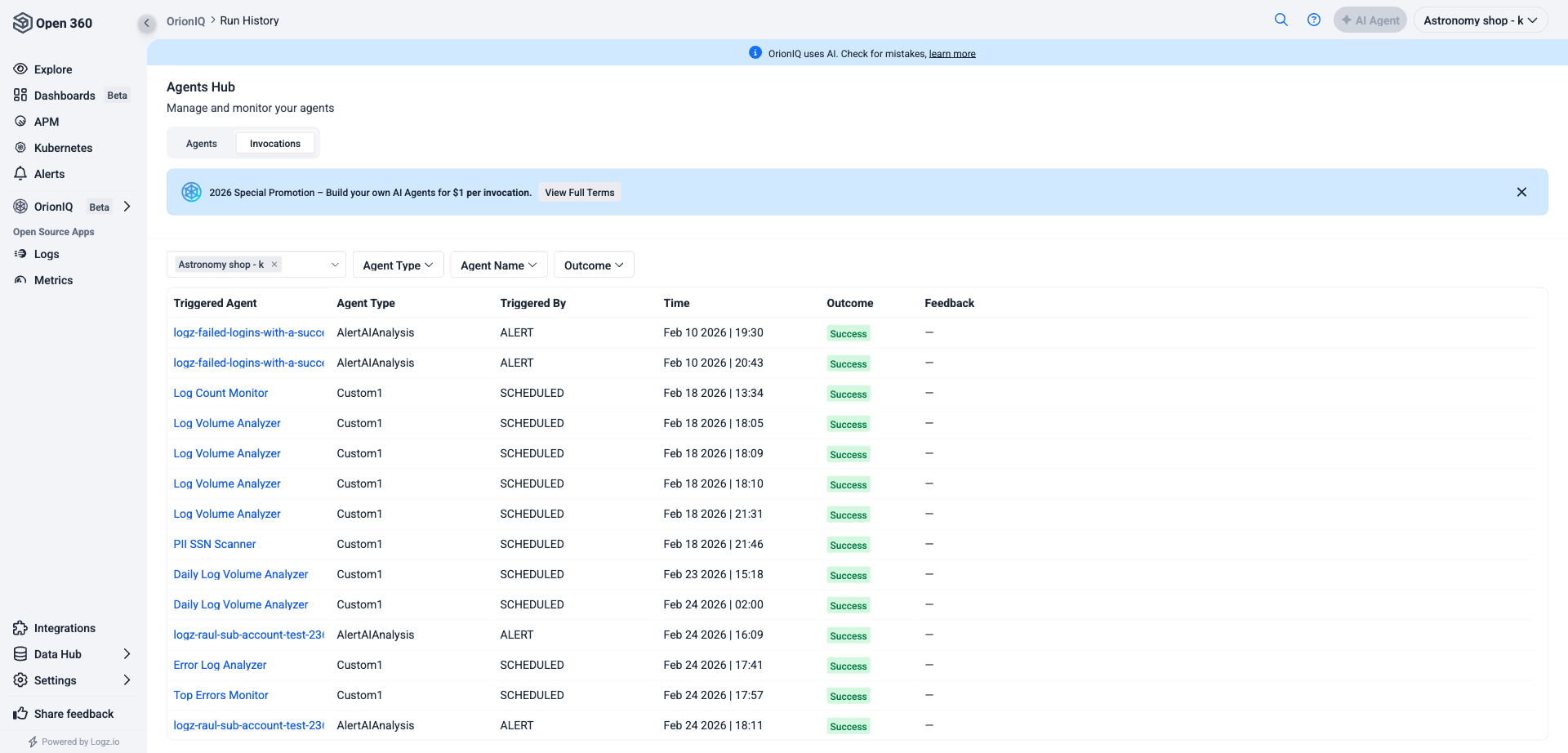
Click on any invocation to open the Agent Invocation Details panel, which contains three tabs:
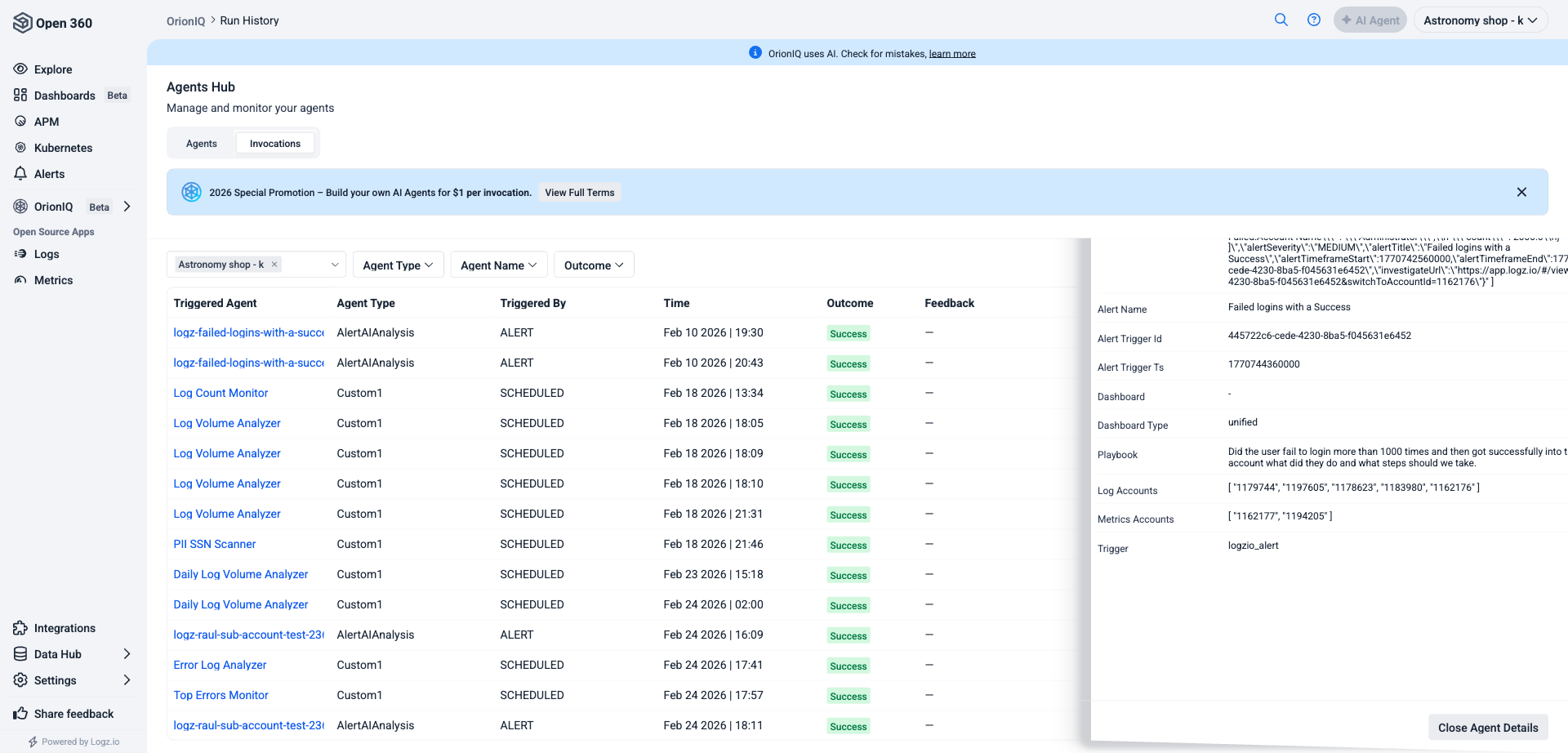
Input
Shows the agent's specification (the instructions and guidelines provided to the agent) and the context used for the invocation, including filters and account information.
Analysis
Displays the step-by-step reasoning the AI performed during the invocation. Each step is labeled as either an AI step (the agent's reasoning) or a Tool step (an action the agent took, such as querying logs). Click on any step to expand its details.
Output
Shows the final analysis report generated by the agent. This may include findings such as detected PII, suspicious events, log anomalies, volume trends, and structured data tables. The output is formatted as a readable report that you can review and act on.
Provide feedback
After reviewing an invocation's output, you can rate the accuracy and usefulness of the agent's results from the Output tab. Once you've rated a run, you can also add a free-text comment explaining the rating, and edit it later.
Feedback helps improve AI performance over time and gives you a way to track agent reliability.
You can monitor feedback scores and coverage across all your agents from the Usage & Performance Dashboard, and submit or read feedback programmatically with the OrionIQ API.
Agents with low feedback coverage are harder to evaluate. Make it a habit to rate agent results regularly so you can identify which agents need their instructions refined.