Create an Agent
OrionIQ agents are AI-powered tasks that analyze your observability data and generate reports based on the instructions you provide. You can create an agent using natural language, configure how and when it runs, and set up notifications for its results.
To create a new agent, navigate to OrionIQ > Create New Agent in the left navigation menu.
Build your agent
The Create tab provides an interactive Agent Builder where you describe what your agent should do in natural language. Be specific about the signals the agent should look for, the scope of data it should analyze, and the expected output.
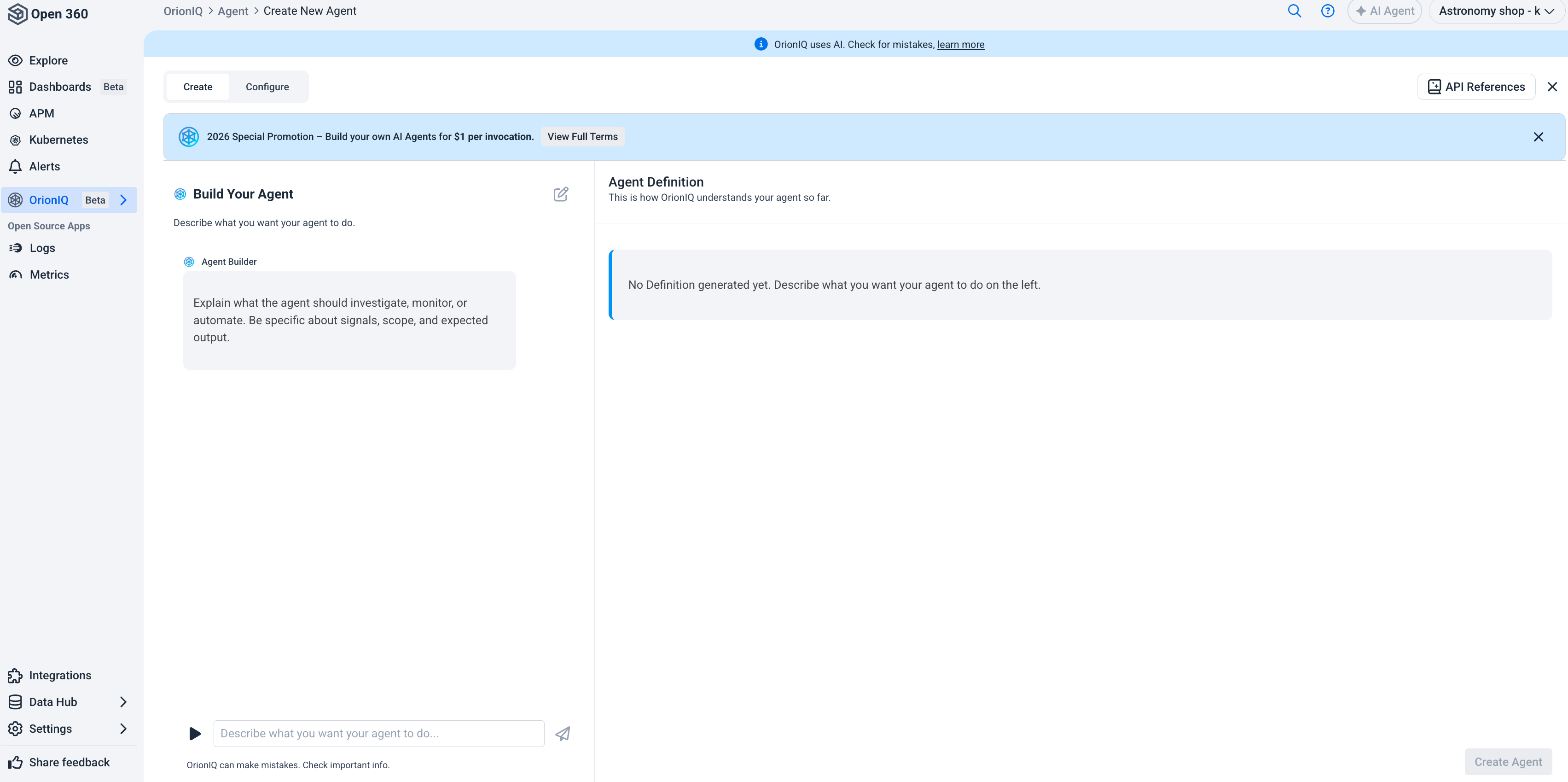
For example:
- "Search through logs to find and extract email addresses. Identify patterns, frequency, and context in which email addresses appear in the logs."
- "Create an agent that detects unusually large log messages."
- "Find the top errors across all services and generate a weekly summary report."
As you provide instructions, OrionIQ generates an Agent Definition on the right side of the screen. The Agent Definition is a structured specification that represents how OrionIQ will interpret and execute your instructions. You can continue refining your instructions by adding more detail in the chat, and the definition updates in real time.
You can add additional instructions at any time to expand the scope of your agent. For example, after creating a base agent, you might ask it to also check which hour of the day produces the largest logs.
Configure the agent
Switch to the Configure tab to set the agent's properties and behavior.
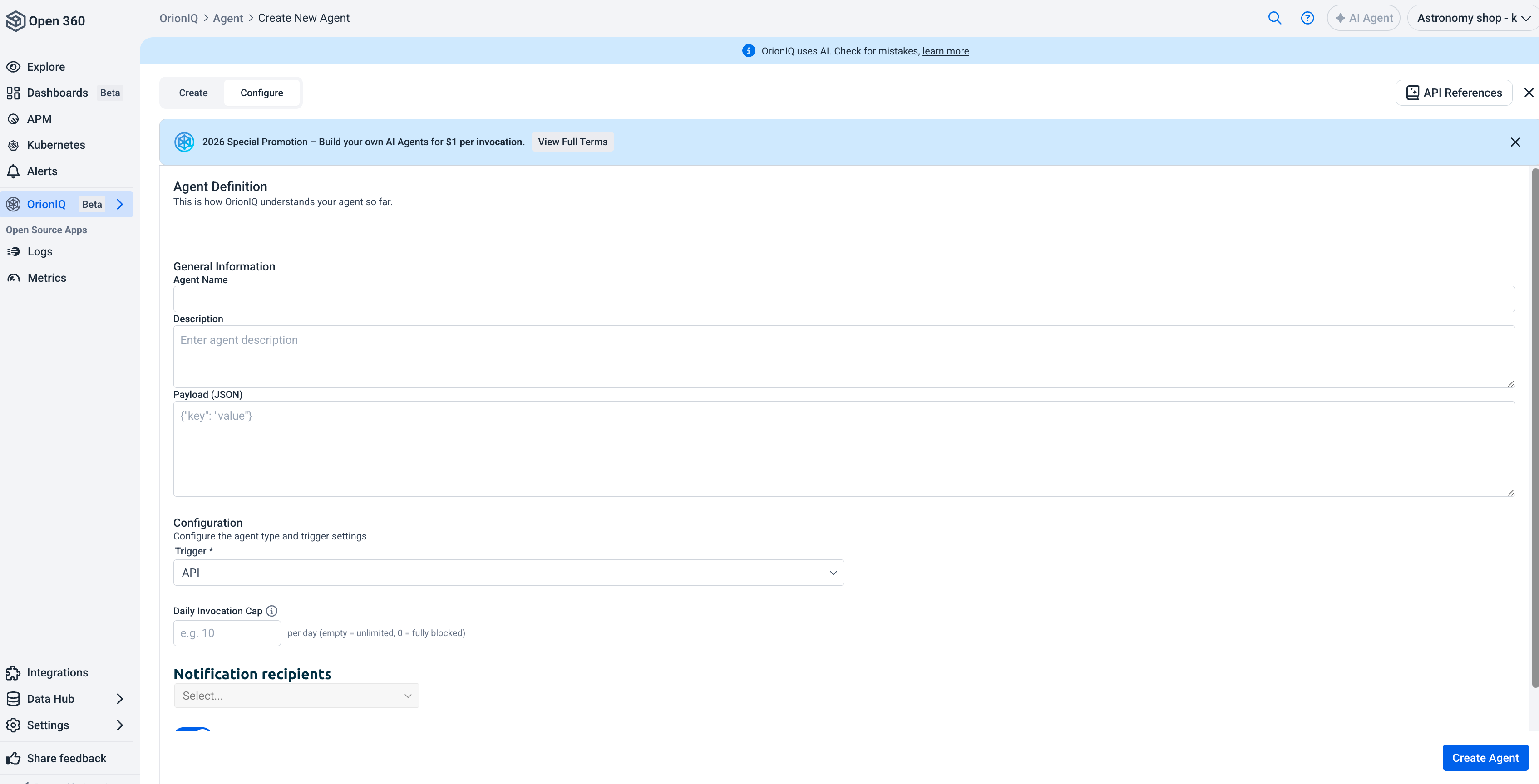
The configuration is a series of sections. Work through them in order.
General Information
| Field | Description |
|---|---|
| Agent Name | A descriptive name for your agent. |
| Description | A brief explanation of what the agent does. |
| Active | Enable or disable the agent. When disabled, it won't run regardless of its trigger. For an alert-linked agent this is managed from the alert definition. |
Agent Definition
The specification the agent runs from, generated for you on the Create tab. You can refine it field by field here:
| Field | Description |
|---|---|
| Runbook | Mandatory step-by-step procedure the agent follows, in order. |
| Guidelines | Custom instructions for the agent. |
| Agent tools | Which tool set the agent uses: Log agent, Metric agent, Logs + Metrics (deep), or Integration agent. This decides what the agent can query, so it has to match the data sources you pick below. |
| Output detail | Response verbosity — Summary or Detailed. Ignored when a structured output schema is set. |
| Structured output | A JSON Schema for the agent's response, enforced at inference. Use it when a downstream system consumes the output. |
The raw JSON behind these fields is under Advanced · Agent Definition, which is where the agent's payload lives. Fields sent on an API invocation override the matching fields in it — see the OrionIQ API.
Structured output schemas must be flat: properties can be primitives or arrays of primitives, with no nested objects.
Configuration
| Field | Description |
|---|---|
| Type | The agent type. Determines how the agent is priced and which data it can reach. |
| Trigger | How the agent runs — see below. |
| Schedule | For a Scheduled trigger, the interval the agent runs on. |
Choose how the agent will run by selecting a trigger type:
| Trigger | Description |
|---|---|
| API | The agent runs when called via the OrionIQ API. Use this for on-demand or externally triggered invocations. |
| Scheduled | The agent runs automatically at defined intervals (for example, every 3 hours or once a day). |
| Deployment | The agent runs automatically when a deployment event is detected. |
| Alert | The agent runs automatically when a Logz.io alert is triggered. |
Daily Invocation Cap
Each agent invocation incurs a cost. Set the maximum number of invocations per day to control your usage budget. Leave it empty for unlimited invocations, or set it to 0 to block the agent completely.
You can also set a soft limit: when daily invocations reach it, a warning notification is sent but invocations are not blocked.
Account-wide limits are set separately — see Settings → Capping.
Data Sources
Pick the observability platform and accounts this agent can query. Toggle the scope chips to choose Logs, Metrics, or both — each scope has its own accounts list.
Which scopes you have to fill in follows the Agent tools you chose above: an agent declaring a logs tool set needs a logs data source, and the agent won't save until every declared scope has one.
Integrations
Connect third-party tools — Slack, Jira, Confluence, and the rest — that this agent can use as context. Only integrations your account has already connected are available here; connect new ones from the Integrations page.
Notification recipients
Configure where agent results are sent after each invocation. You can select from:
- Email addresses of team members.
- Pre-configured notification endpoints such as Slack channels, Microsoft Teams webhooks, or custom API endpoints.
Finalize and create
Once you've reviewed the agent definition and configured the settings, click Create Agent. The agent becomes available in the Agents Hub where you can monitor its invocations and manage its settings.
You can edit an agent's instructions, trigger, and notification settings at any time from the Agents Hub. Users with the Read-only role can't create or edit agents.